
Opening a medical imaging study should not mean rebuilding the same viewing layout every time. In a DICOM viewer, the arrangement of images can be just as important to the workflow as the images themselves: users may want specific acquisitions to appear in specific positions, with a consistent number and size of viewports.
Hanging protocols automate this process. They define how a viewer selects a layout and places images based on information in the DICOM study. In VisioVIEW, users can configure protocols, control which protocol takes priority, and refine the arrangement directly in the viewer.
The following video demonstrates the hanging protocol functionality in VisioVIEW, including protocol configuration, DICOM matching rules, viewport layouts, and interactive adjustments.
Hanging protocols fundamentals
The term comes from film-based radiology, when radiographs were physically hung on light boxes in a preferred order. Digital hanging protocols carry the same idea into PACS and DICOM viewing: they establish repeatable rules for how studies and images are presented.
A hanging protocol is particularly useful when an examination type is repeated frequently. Instead of manually selecting series and arranging viewports each time, the viewer can start with a predefined configuration. The preferred arrangement may differ by modality, anatomy, department, or individual reading practice. For example, two readers may prefer different positions for the same chest radiograph view. These preferences explain why a flexible layout configuration is valuable rather than a single universal arrangement.
Successful automatic arrangement also depends on the metadata available in the DICOM images. In general PACS workflows, useful attributes include anatomic region, image laterality (left or right), viewing direction or view code, and patient orientation, alongside modality and study or series descriptions. Missing or inconsistent metadata can limit how reliably any rule-based hanging protocol selects and places images. See the SIIM hanging protocol overview for background.
The DICOM standard defines a Hanging Protocol Composite IOD and related services. Viewers can also implement their own configurable protocol systems.
Benefits of hanging protocols in DICOM
A study may include scout images, several acquisitions, multiple reconstructions, or images from different views. Manually organizing these images can interrupt the review process, especially when the same layout is needed for many examinations. In a conventional radiology workstation, this preparation can also involve reordering images or adjusting their rotation, orientation, or grayscale presentation. Hanging protocols aim to reduce this repetitive preparation; the particular operations they automate depend on the viewer implementation.
Hanging protocols can help by:
- Reducing repetitive setup: start with a predefined image arrangement.
- Improving consistency: use the same placement rules across similar studies.
- Supporting specialized workflows: create different configurations for different examination types or modalities.
- Preserving flexibility: adjust the active layout when an individual case requires it.
Configuring hanging protocols in VisioVIEW
Hanging protocols are accessible from the Settings dialog in the Study Browser toolbar. Users can add, duplicate, edit, delete, and reorder protocols.
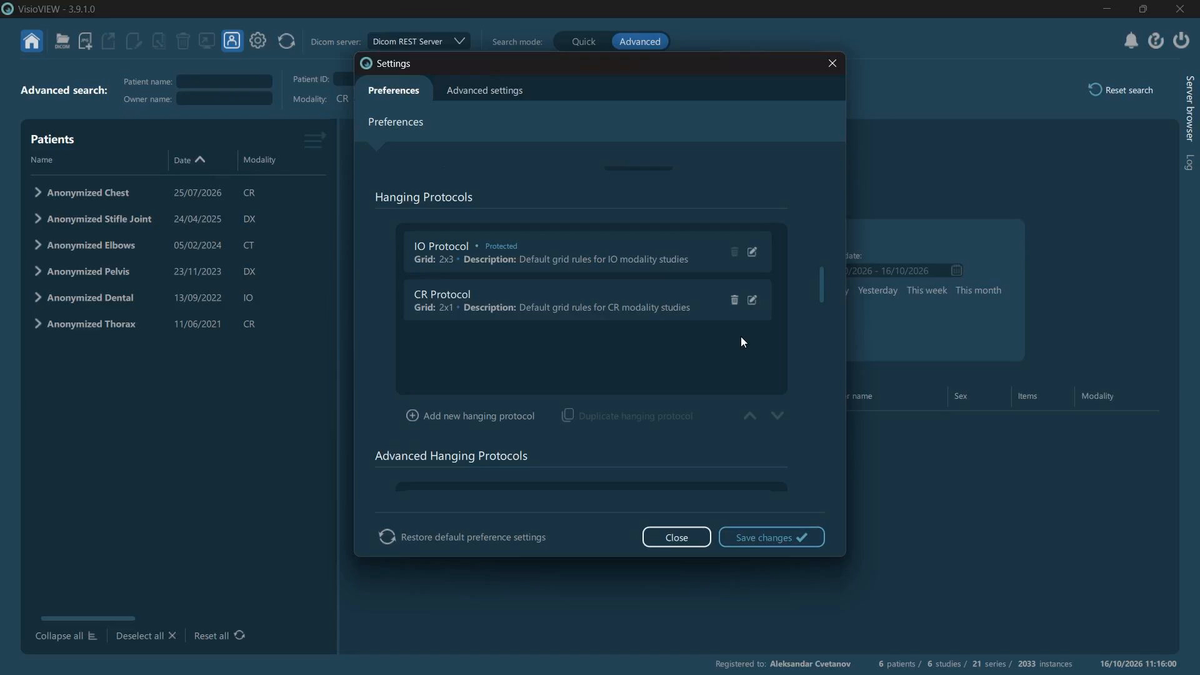
Protocol priority: the first match wins
Protocol order is significant. If more than one protocol matches an opened study, VisioVIEW selects the first matching protocol in the configured list. Moving a more specific protocol above a general one therefore changes which layout is applied.
Three configurations sections
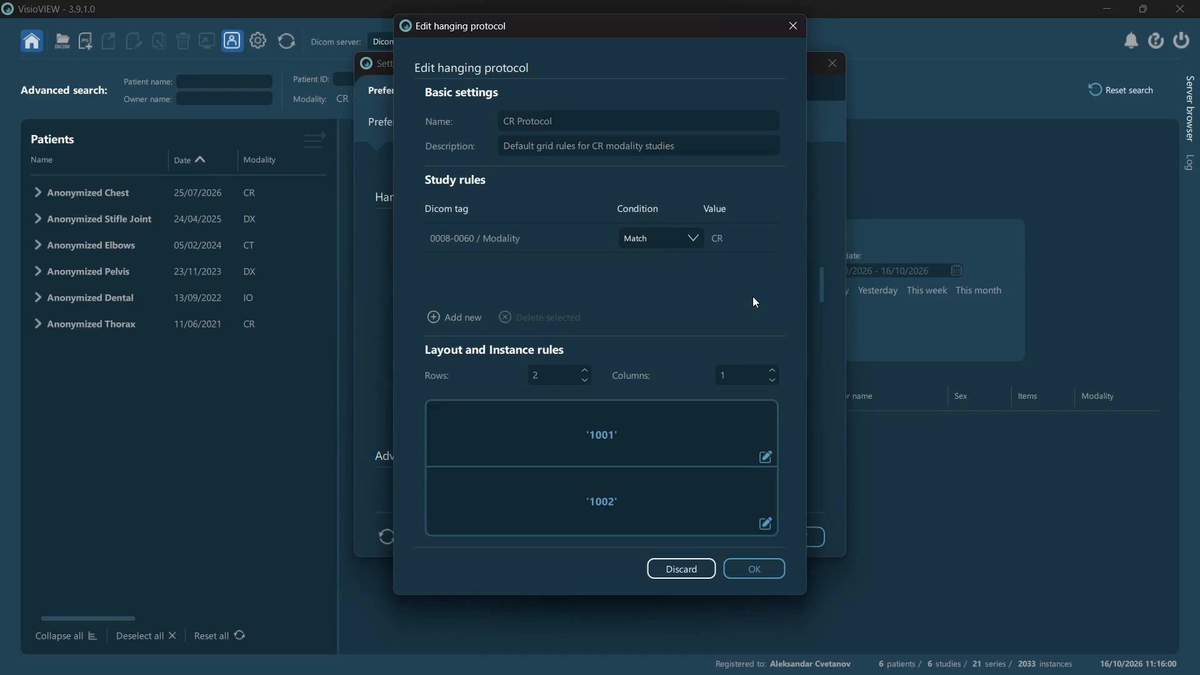
The protocol editor organizes its settings into three areas:
- Basic settings. Give the protocol a name and description so it can be identified and managed.
- Study rules. Define which studies qualify for the protocol by evaluating DICOM tag values. The video demonstrates five comparison options: Match, Exclude, Begin with, End with, and Contain. See figure 2.
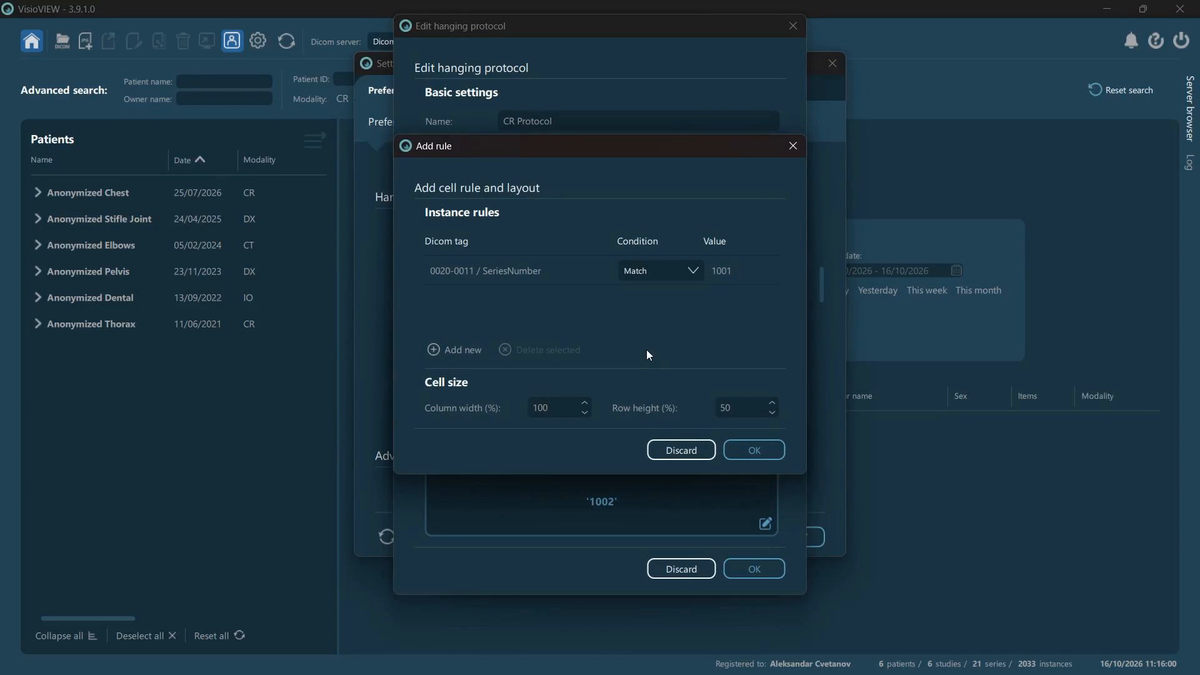
- Layout and instance rules. Define the number of rows and columns, the size of each cell, and the rules that determine which images belong in each cell. Instance rules use DICOM tags to assign images to the appropriate viewport. To edit them, use the edit control in a cell or double-click the cell in the settings dialog.
Example: arranging CR images by series number
The video demonstrates a protocol for CR (Computed Radiography) images. The protocol selects the relevant examination and places images with Series Number 1001 in the upper cell and images with Series Number 1002 in the lower cell.
This example illustrates the difference between the two levels of rules: study rules decide when the protocol should apply, while instance rules decide where individual images go. The full workflow, including protocol creation, matching rules, layout configuration, image rearrangement, and saving or resetting changes, is shown in the video.
Working with protocols in the viewer
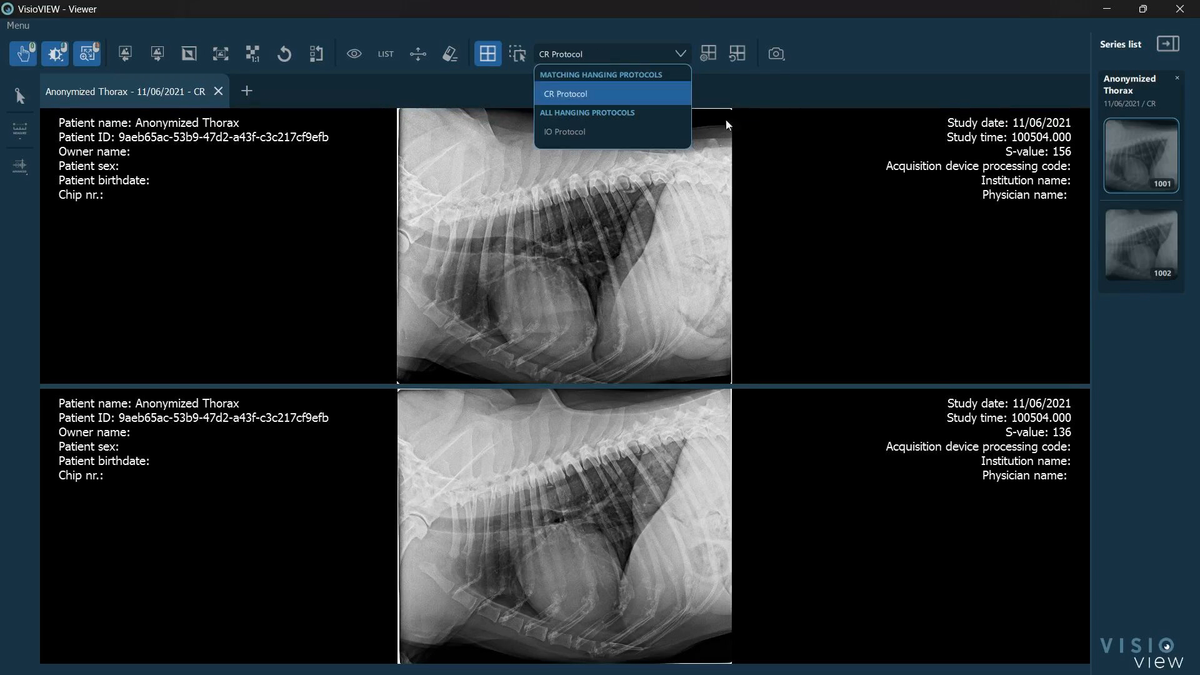
After opening a study, users are not locked into the automatically selected layout. VisioVIEW provides viewer controls to enable or disable the active hanging protocol and switch to another configured protocol.
Users can also manipulate the arrangement by dragging and dropping images between available image stacks. When an image is moved away from the cell indicated by the active protocol, VisioVIEW visually marks the mismatch.
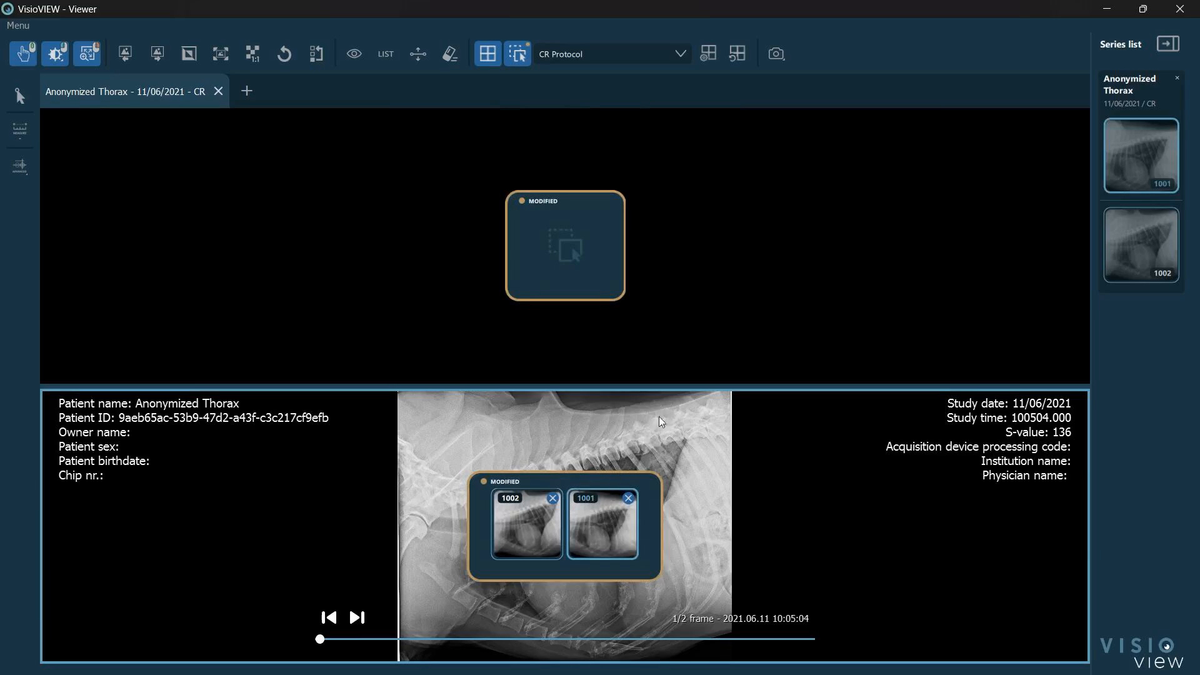
Customizing the Viewing Workflow
The video demonstrates two related adjustment workflows:
- Instance-rule overrides: after rearranging images, the Assign Instance rules action applies the new cell’s rule values as overrides for the modified images, allowing the adjusted arrangement to be loaded again with that protocol. Reset viewer rules clears these overrides.
- Layout changes: users can resize cells in the viewer or edit the protocol settings. Override stored layout saves the modified layout, while Reset changes discards the changes shown in the dialog.
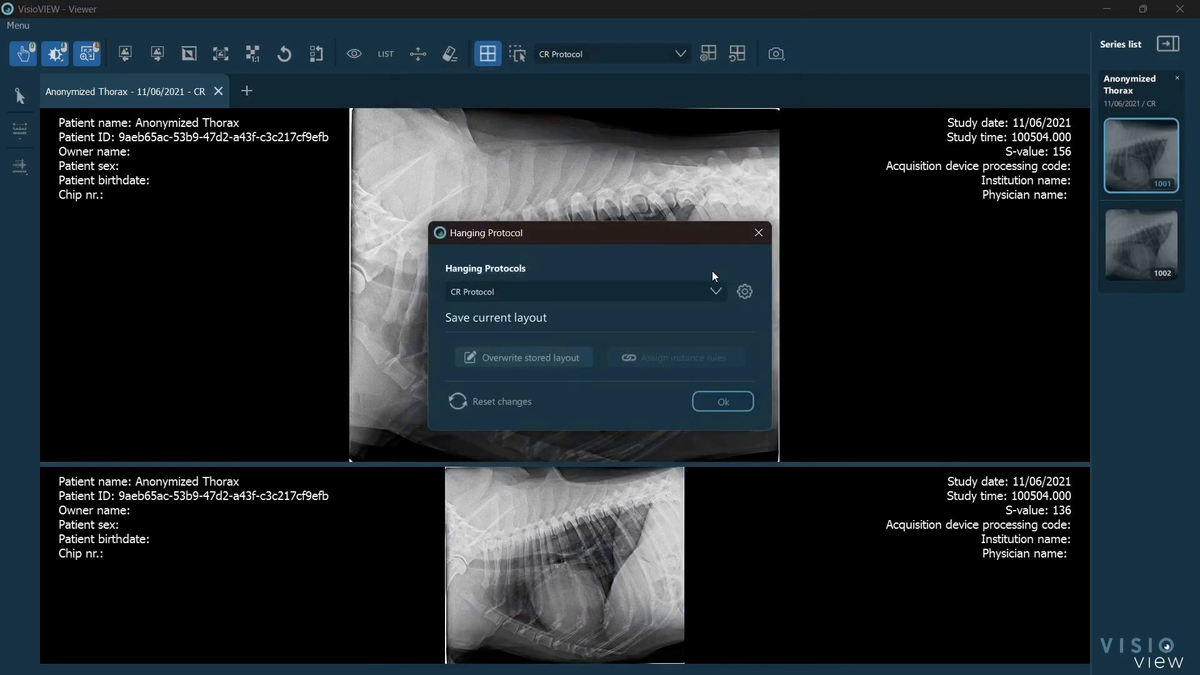
Selecting a protocol when opening study
VisioVIEW also allows users to select a hanging protocol from the right-click menu when opening images. Matching protocols are listed at the top, making it easier to choose an appropriate arrangement for the examination.
This is useful when several layouts could work for the same study, or when a user wants to depart from the default automatic choice.
Conclusion
Hanging protocols connect DICOM study information to a repeatable viewing layout. VisioVIEW combines automatic protocol selection, configurable DICOM tag rules, per-cell image placement, and interactive adjustments, helping users spend less time arranging images and more time reviewing them.
Whether reviewing routine radiographs or configuring a specialized veterinary imaging workflow, a well-designed hanging protocol provides a consistent starting point without removing the flexibility to adapt the viewer to an individual study.
For detailed configuration guidance, see the VisioVIEW documentation: Hanging Protocol Dialog.
